# Assigning call lists

After you have created your call lists in NationBuilder, you'll want to assign your list to your callers. This will enable them to access the list via the mobile app.

**Depending on how the users logs in, lists are assigned differently:**

* [**NationBuilder** ](#nationbuilder-campaign-managers-and-default-users)**login:** assign in NationBuilder
* [**Accountless**](#accountless-users) **login**: assign in FieldEdge HQ

## NationBuilder (campaign managers & default users)

{% hint style="info" %}
If the user is a NationBuilder Admin, they will already have access to all lists in your nation so no action is required. If the user has another permission set, the following applies.
{% endhint %}

A list can be assigned to either an individual or a group.\
\
You can assign a list while turf cutting or after the fact, in the `Settings` tab.

Start by navigating to the `Settings` tab of the list you want to assign. When viewing all lists, you can access the Settings tab by clicking the pencil "edit" icon next to the list's name

Next, look at the top of the list and click on `Settings`.

{% tabs %}
{% tab title="Assign to an individual 🧍🏽‍♂️" %}
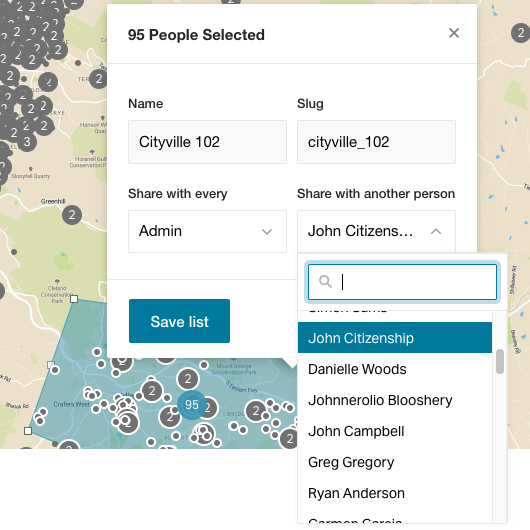
**We recommend assigning each list to a person so only they can see that list, this keeps it simple for your canvassers, however, it does require more work for you**.

<figure><img src="https://3317596624-files.gitbook.io/~/files/v0/b/gitbook-x-prod.appspot.com/o/spaces%2Fmd1HR6LZFUYuK3fPHLXC%2Fuploads%2FHBWFw8HENLzKnH3E8jNY%2FScreen%20Shot%202022-11-25%20at%201.24.18%20pm.png?alt=media&#x26;token=a297a0fe-7536-4e5d-9074-ab3ce04859a9" alt=""><figcaption><p>In the field labeled 'Share with another person,' enter the person's name you want to share/assign the list to.</p></figcaption></figure>

Be sure to click the Save button :smile:
{% endtab %}

{% tab title="Share with a group 👬" %}
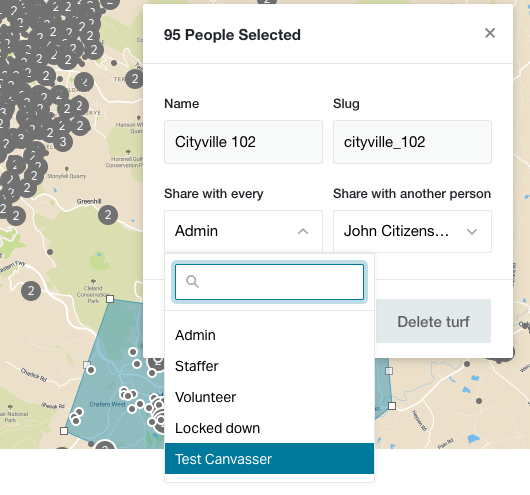
**You can assign the list to a whole Permission Set OR a Group (if you have an NB Enterprise account) and simply tell them which list they should be canvassing (eg. "Jane, please canvass the list "Broadway swing voters #1".**

<figure><img src="https://3317596624-files.gitbook.io/~/files/v0/b/gitbook-x-prod.appspot.com/o/spaces%2Fmd1HR6LZFUYuK3fPHLXC%2Fuploads%2FJG7g9WEEzQdxuSAHEG4l%2FShare%20with%20group.png?alt=media&#x26;token=ebc7b1b1-9db4-4d71-b2c9-03e12d916988" alt=""><figcaption><p>In the field labeled 'Share with every,' select the permission set you wish to share/assign the list to. This will make the list available to anyone with that permission set.</p></figcaption></figure>

Be sure to click the Save button :smile:
{% endtab %}
{% endtabs %}

{% hint style="warning" %}

### **Using the "Assigned" Permission**

In some cases, you may want to restrict your users so **they can only see Contacts that have been assigned to them**. This is done using NationBuilder's Permissions Sets. [Learn more about restricting access](https://guides.fieldedgeapp.com/team-setup/restricting-access).&#x20;

**If you are using the Assigned feature, you will also need to Batch Update the list to assign that person to the list.** [**Learn how here**](https://guides.fieldedgeapp.com/team-setup/restricting-access#assign-people-on-your-list-a-point-person)**.**
{% endhint %}

## Accountless Users

For Accountless users (user with a FieldEdge account but not a NationBuilder account), lists are assigned in the FieldEdge HQ Dashboard.

By default, when an Accountless user is added, they will not have any lists assigned to them. You have the option to assign specific lists or all list from your nation. It is recommended to assign specific lists.

To assign a list, go to [Team Management > Accountless Users](https://hq.fieldedgeapp.com/team?type=mobile_only) (click this link to open it in HQ).

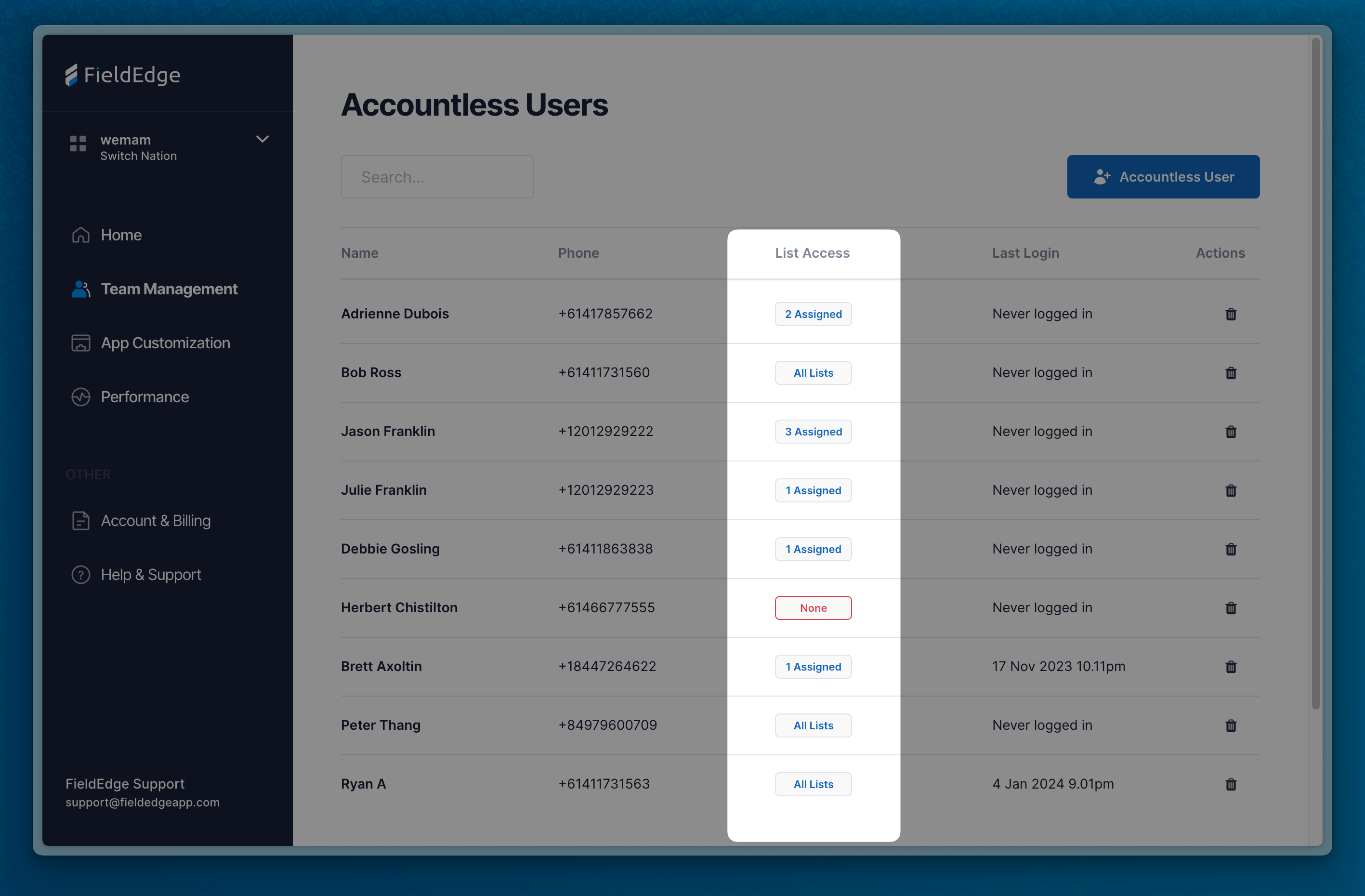
Pay attention to the **List Access** column. To assign a list or change list assignment, click on the button for the user you wish to edit. Select Specific and then assign the lists.

<figure><img src="https://3317596624-files.gitbook.io/~/files/v0/b/gitbook-x-prod.appspot.com/o/spaces%2Fmd1HR6LZFUYuK3fPHLXC%2Fuploads%2FZGPUWu7RuIrgnLZN8rEQ%2FCleanShot%202024-01-09%20at%2010.30.31%402x.png?alt=media&#x26;token=953cf596-e8e3-493f-8fa1-115d44a2f874" alt=""><figcaption></figcaption></figure>

<figure><img src="https://3317596624-files.gitbook.io/~/files/v0/b/gitbook-x-prod.appspot.com/o/spaces%2Fmd1HR6LZFUYuK3fPHLXC%2Fuploads%2FPWMBjBXL3NsBk725j3LR%2Fteam%20management%20-%20accountless%20users%20select%20list.png?alt=media&#x26;token=e79d70ce-1682-476c-ac02-7aa011f0691e" alt=""><figcaption></figcaption></figure>

Your user will now be able to see the lists you have assigned. They may need to fully close the app and reopen it to see the lists assigned to them.

### Syncing your lists to the FieldEdge mobile app <a href="#h_2ac883bd95" id="h_2ac883bd95"></a>

Once you create your lists in NationBuilder and assign them to a person or permission set, they will automatically sync to FieldEdge and become available as a list to canvass.

<br>